How To Register with “Pay Deposit” + Instalment Option:
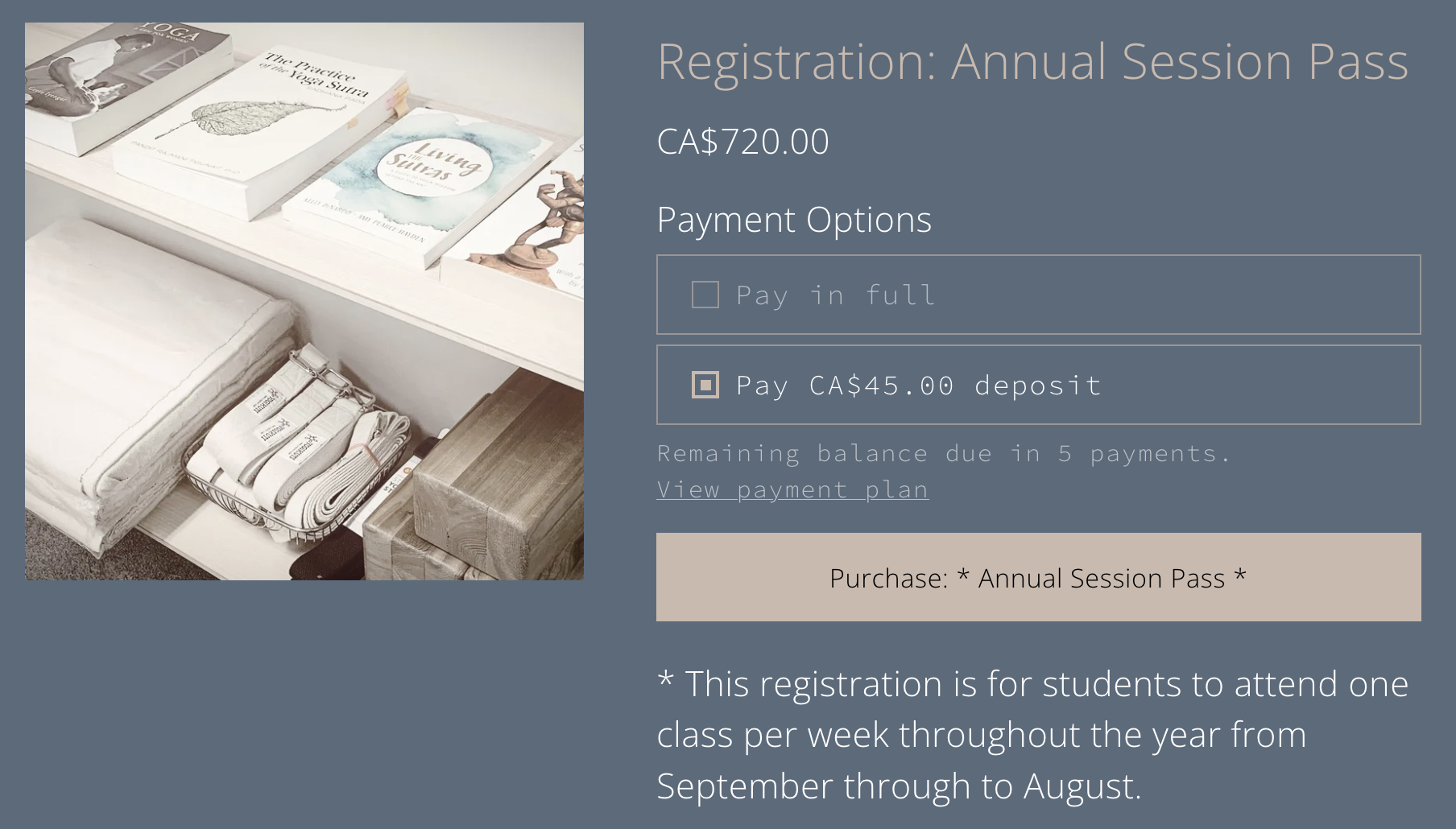
Step 1
* Select the “Pay … Deposit” option
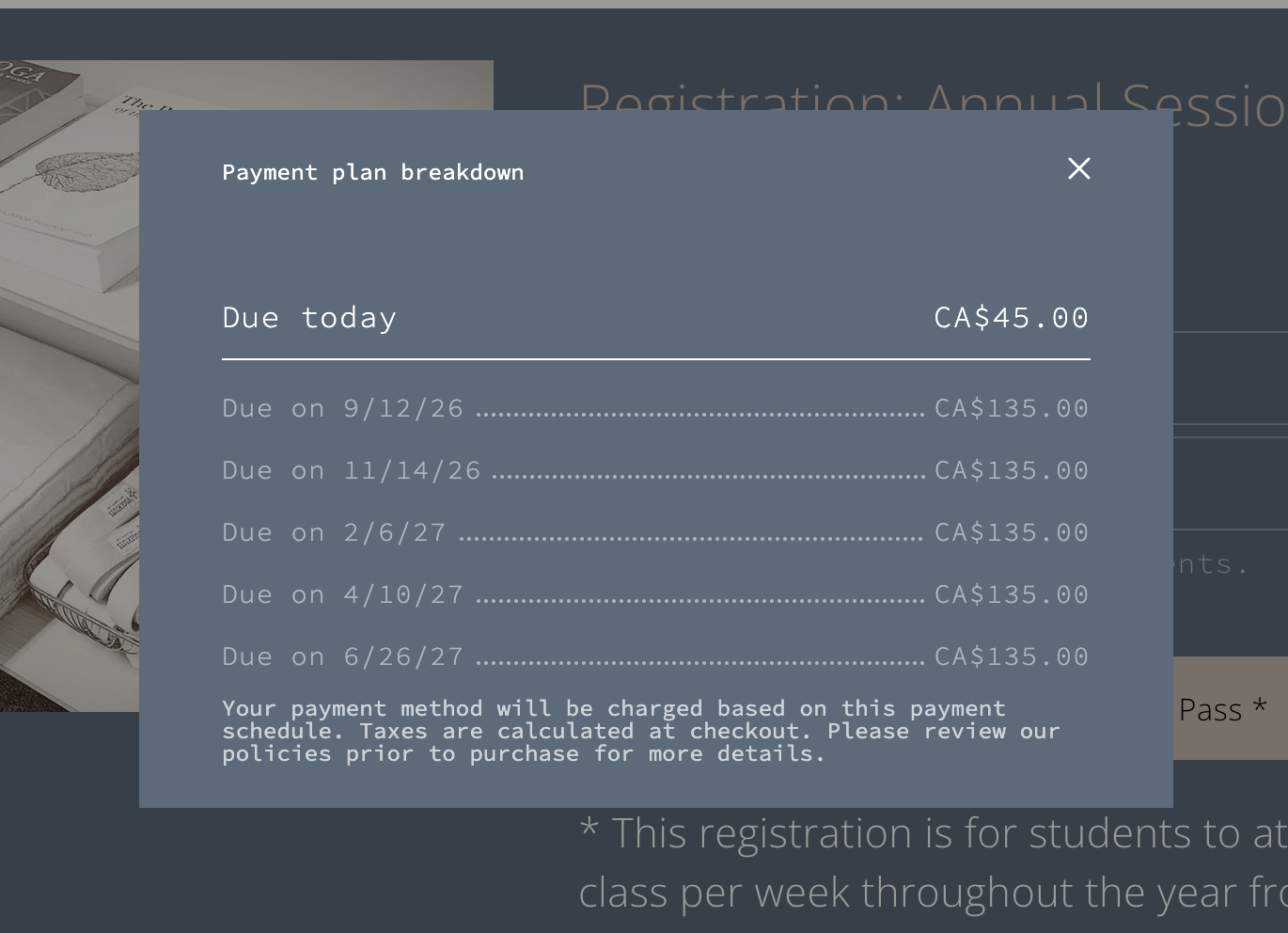
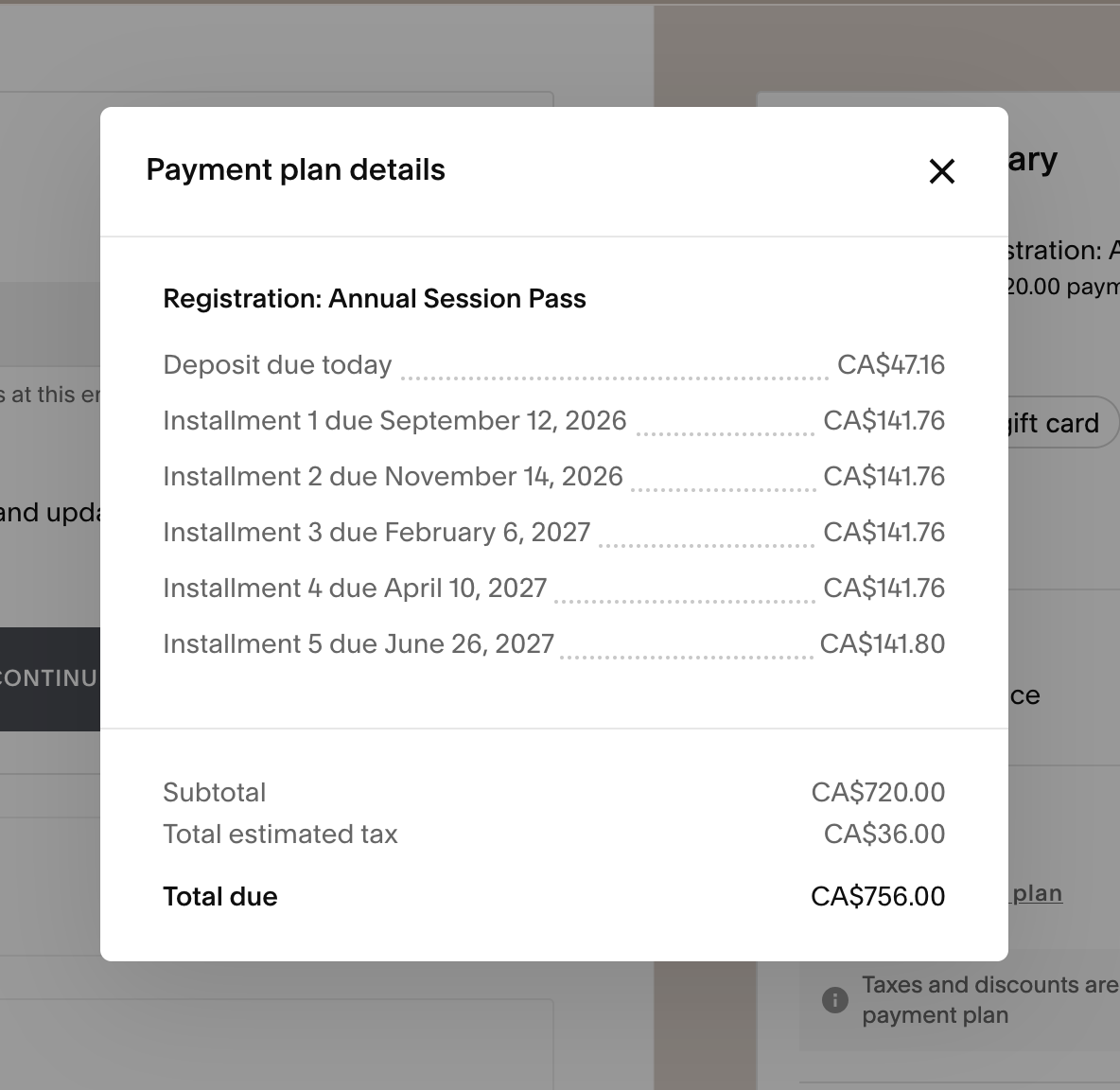
Just below where you have selected the “Pay … deposit” box, you can click to view the payment schedule. A window will open showing the upcoming automated payment dates and fee amounts (there are before tax amounts)
To proceed, close this window and then click “Purchase Annual Session Pass”
* You will be taken through to the checkout area
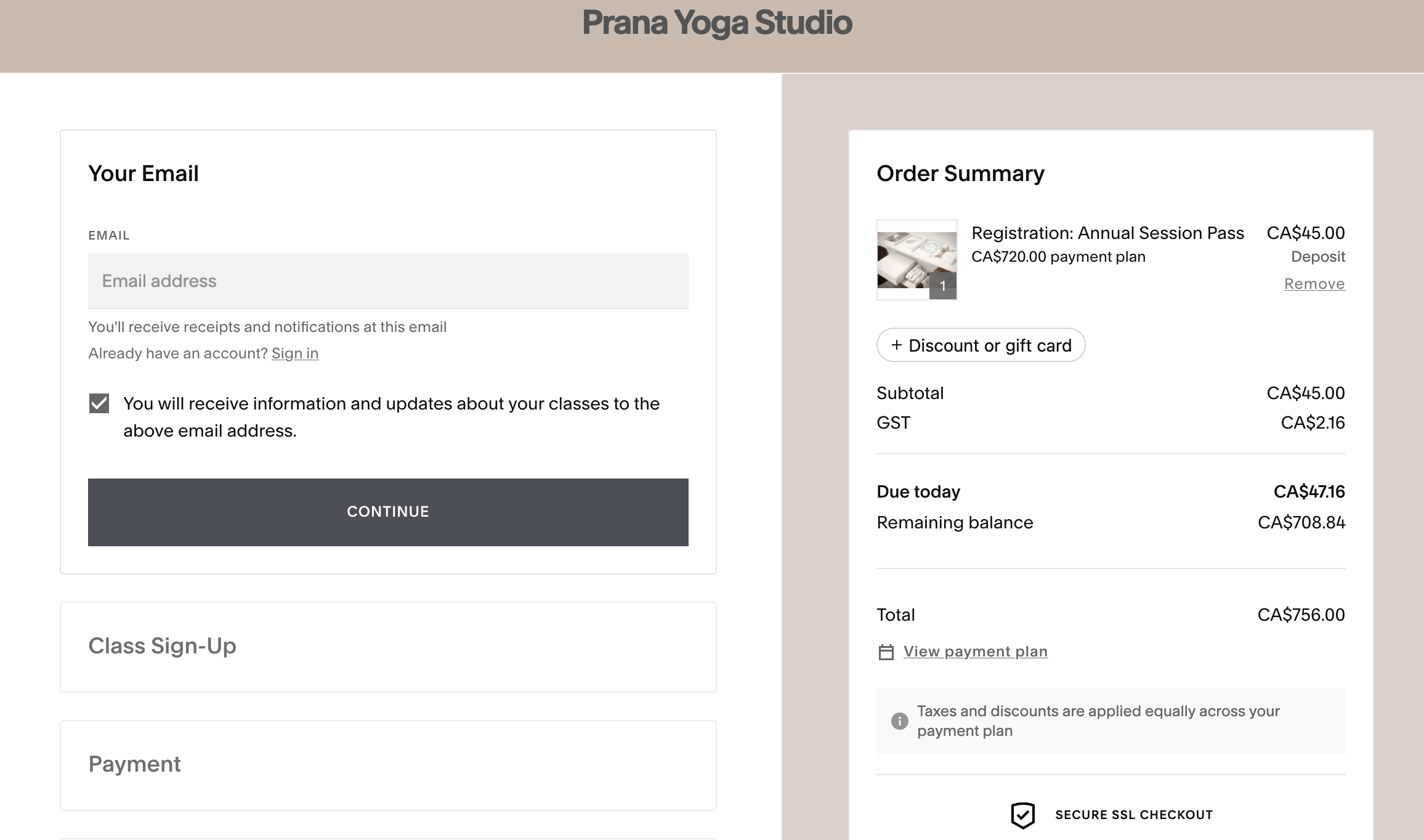
Step 2
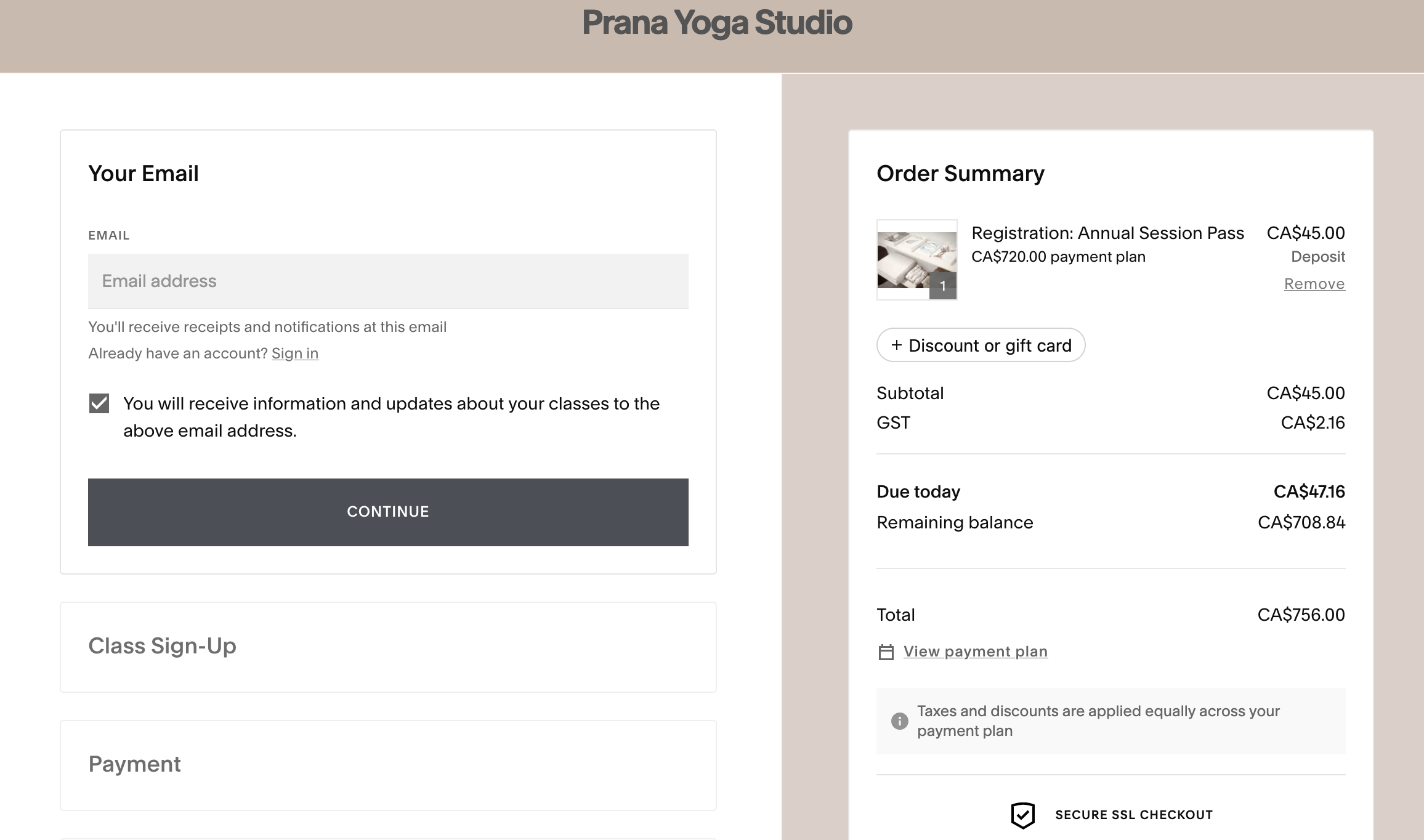
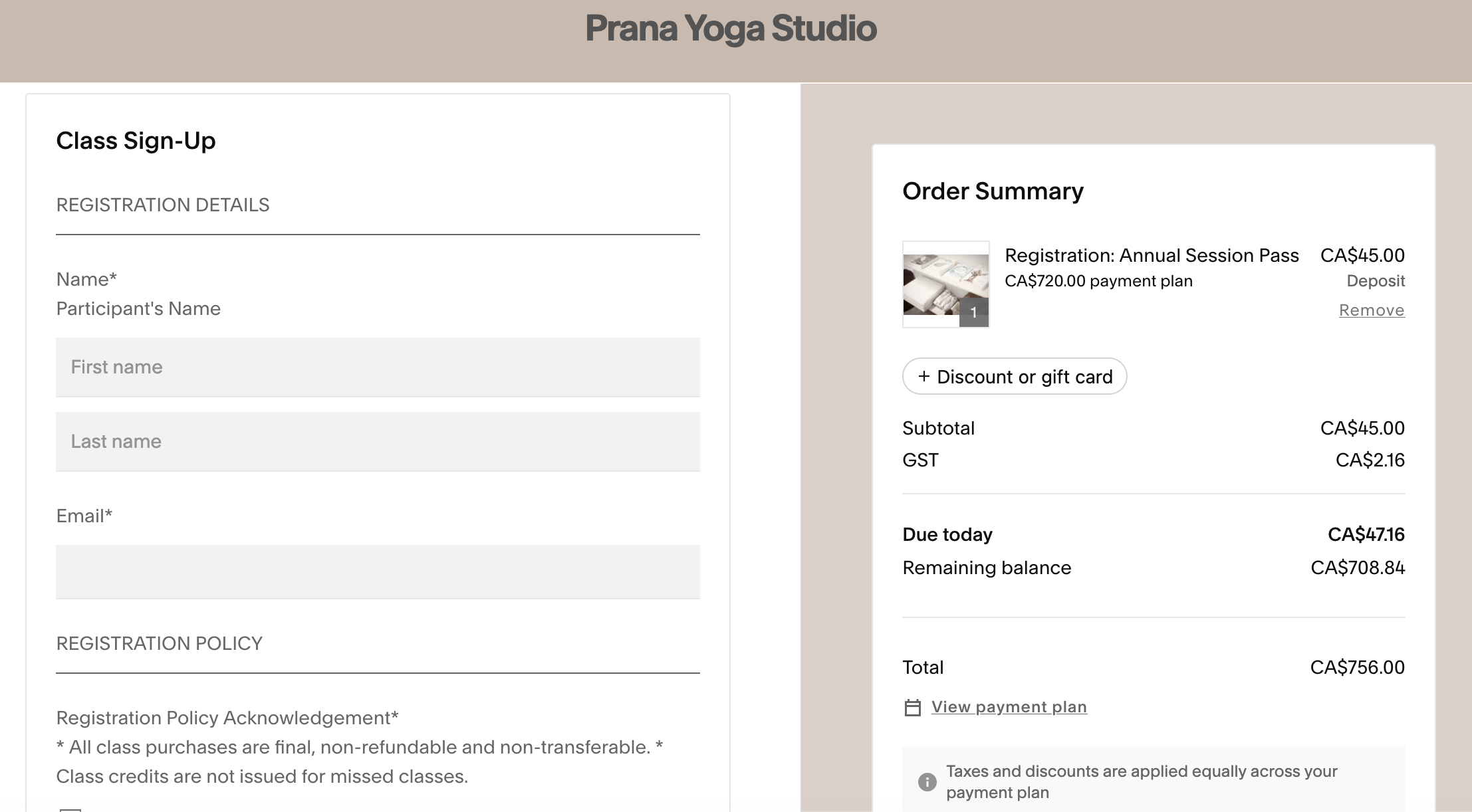
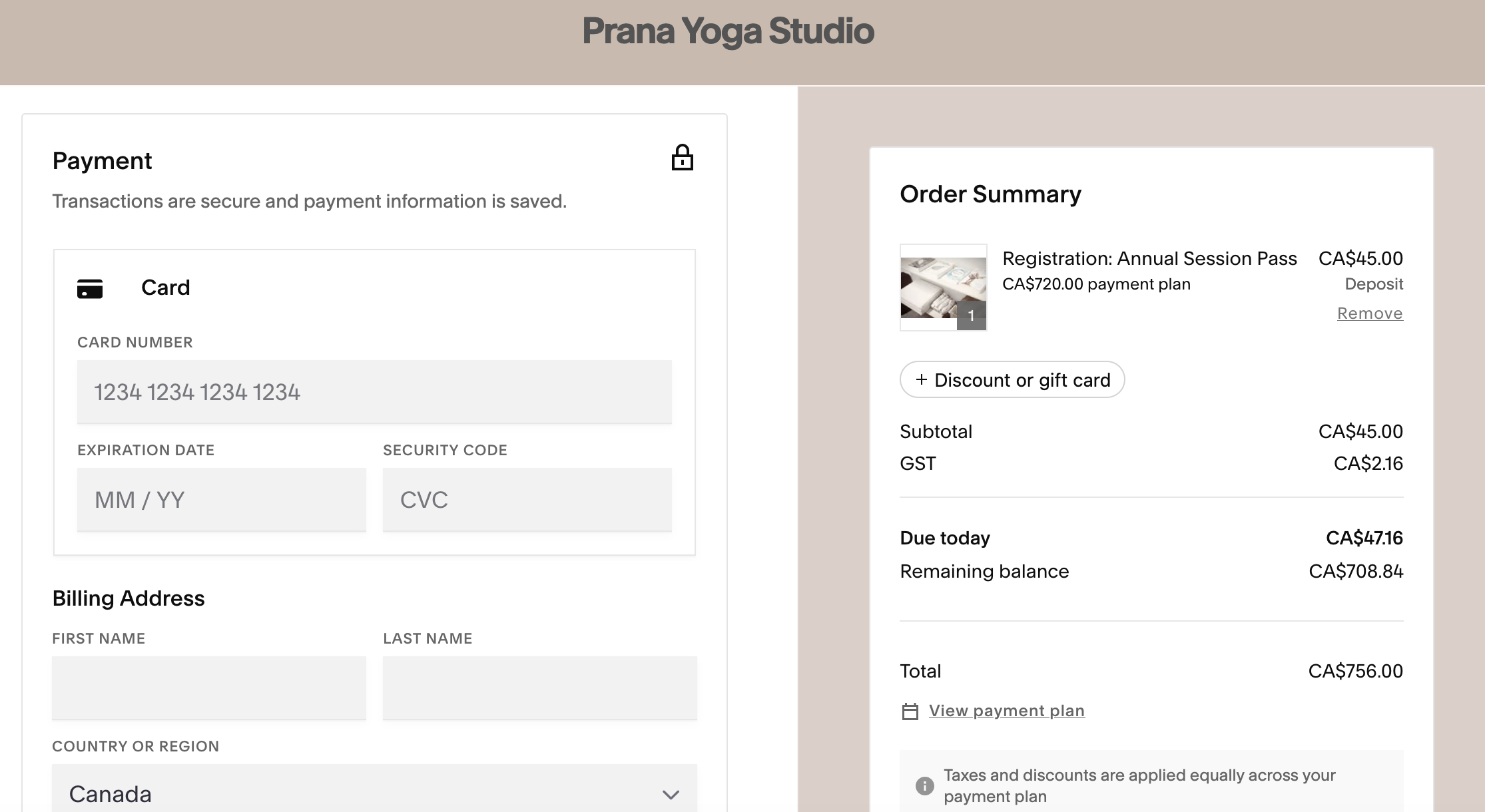
* Once you are in the checkout, you can view your Order Summary details.
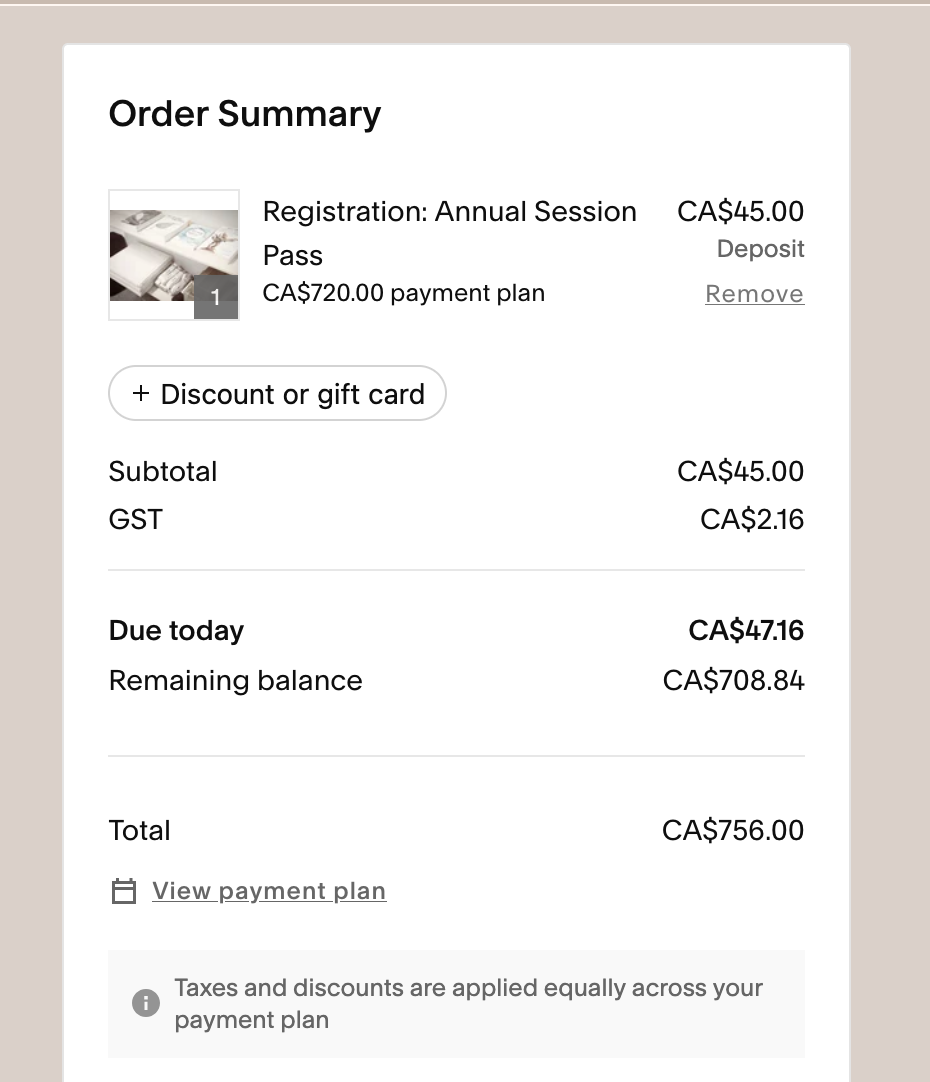
* At the top of the Order Summary window, you will see the deposit amount that will be billed for the initial transaction.
*For this example: $45
* You will then see the Subtotal amount which is the deposit amount and the GST
*For this example: $45 + $2.16 GST
* Next you will see “Due today” showing the deposit amount plus the GST that will be billed for the initial transaction.
*For this example: $47.16 (=$45 + $2.16 GST)
* Just below, you will see “Remaining Balance” that reflects the total remaining balance that will be billed at intervals according to the payment schedule.
* Just below the remaining balance, at the bottom of the Order Summary, you will see a line that says “Total”. This is the total amount that will be paid over the course of the year with each of the instalments.
*For this example: $756.00 ($720 + GST)